
CC Protection
CC Protection
Overview
CC protection defends against CC (Challenge Collapsar) attacks - large volumes of requests sent to a site in a short time.
A website can hold multiple rules, evaluated top-down by priority and stopping at the first match (Observe rules excepted). Every rule has four parts:
| Part | Question it answers |
|---|---|
| Scope | Which requests this rule covers |
| Counting | Which matched requests count as one hit, and how hits are grouped |
| Threshold | How many times within how long |
| When exceeded | What to do once exceeded |
Rules are configured per website; choosing the Global site applies them everywhere. Execution order is this site's rules, then the global site's rules.
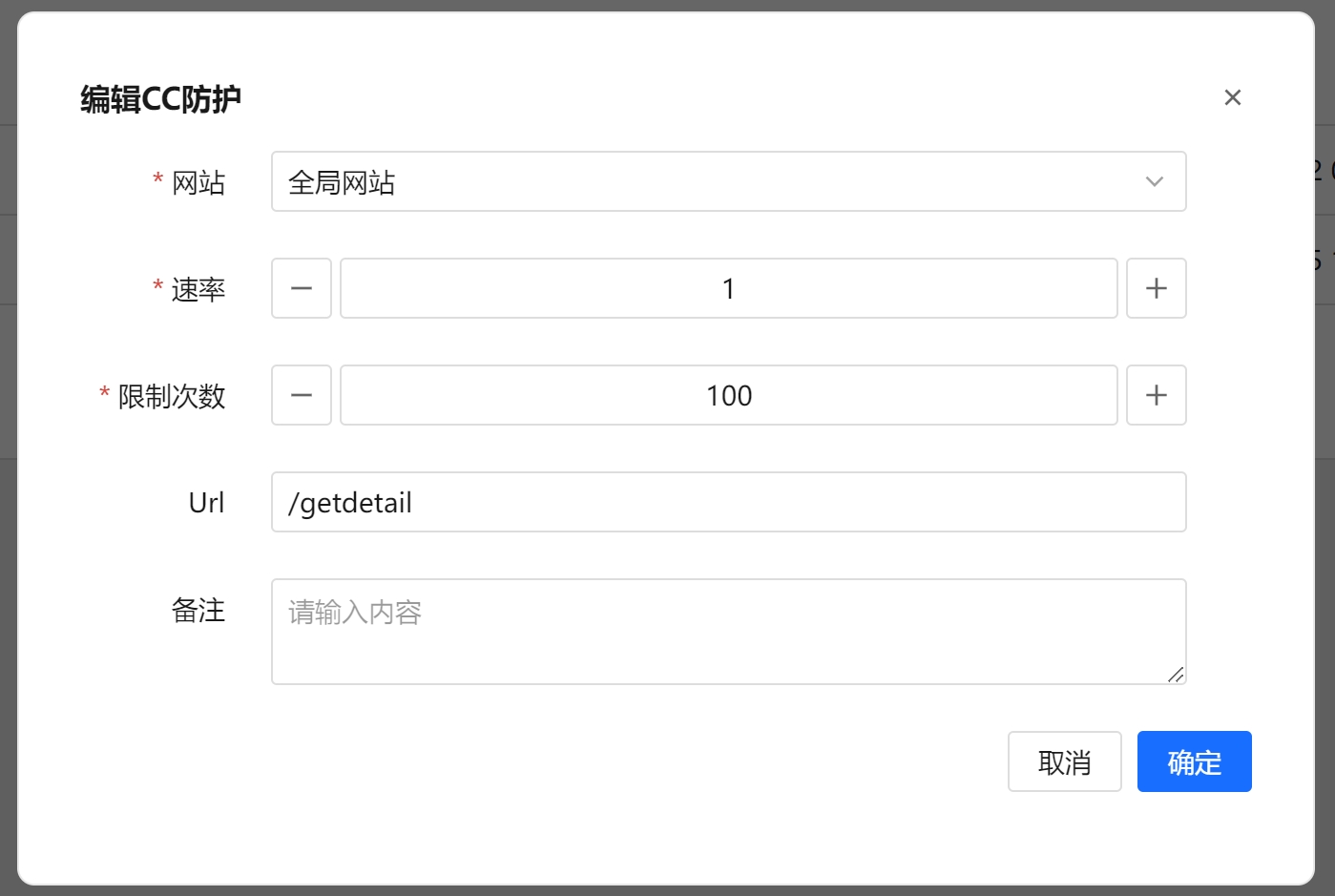
Steps
- Open the CC Protection page.
- Pick a group and a website at the top (groups are only a filter and never affect protection).
- Leaving the website on All websites (the default) lists every site's rules with an extra Website column, which is handy for reviewing everything at once. Up / Down then reorders only within the same site.
- Do not confuse the two: All websites is a viewing range and only changes what you see, whereas the Global site in the dropdown is a real configuration target - rules placed on it apply to every site.
- Click New rule and fill in the four sections:
1. Scope
- All requests - the rule covers every request to this website.
- By conditions - add conditions one by one, combined with AND. Each condition is "target + operator + value". When the target is a request header, cookie, query parameter or JSON body field, you also supply a field name saying which one to read.
- Advanced (script) - express complex conditions in script. This and "By conditions" are two ways to write the same thing - pick one.
The operator decides what goes on the right: exists / not exists needs no value; in / not in is multi-select; between takes two numbers; everything else takes one value.
Request method, scheme, file extension, response status code, response Content-Type and the bot flag have enumerable values, so the right-hand side becomes a dropdown: pick a common value or type your own. Note that the file extension includes the dot (
.js, notjs), and a real response Content-Type usually carries; charset=utf-8, which is why it defaults to prefix match rather than equals.
2. Counting
- Count scope
Exclude static assets(recommended) - js, css and images are not counted. A single page load pulls dozens of sub-requests, and counting them distorts the threshold. This is the most common reason a threshold ends up wrong.All requests- everything counts.Document requests only- counts only real page views.
- Group by - decides how hits are bucketed.
Client IP(default)IP + URL- the same IP is counted separately per endpointCookie value/Header value/Query value- needs a field name; good for limiting per logged-in user or business uid, and avoids limiting a whole NAT exit as oneWhole site- one counter for the entire site
⚠️ Cookies, headers and query parameters can be forged by clients - an attacker can change the value on every request to bypass the limit, unless an upstream trusted proxy guarantees the field. Visitors that do not carry the field automatically fall back to per-IP counting, so they are never merged into one bucket and limited together.
3. Threshold
- Time window (seconds) and request count - that is, "at most M times in N seconds".
- Burst tolerance - absorbs the burst of concurrent sub-requests from one page load; applies only at the start of the window.
4. When exceeded
| Action | Description |
|---|---|
| Human verification (default) | Shows a captcha. Far cheaper on false positives than banning an IP. Passing starts a challenge-free period as long as the configured duration, so sub-requests of the same page are not challenged again; exceeding the threshold after it expires asks for verification again, making this a repeatable gate rather than a one-time toll |
| Observe | Logs only, does not block, and continues to the following rules. Recommended when rolling out a new rule |
| Block | Blocks this request |
| Ban | Blocks the source for the configured duration. Scope can be this site only (default) or all sites |
You can also set "skip global CC rules after a match".
- Exempt verified crawlers (on by default for new rules): search-engine crawlers that completed full identity verification are not counted by this rule. The Observe action is unaffected - it never blocks anyway, and exempting would only hide the crawler's real volume from you.
Verification follows the two steps the vendors document: reverse-resolve the visiting IP to a hostname and check its suffix, then resolve that hostname forward and confirm it maps back to the original IP. Only passing both steps counts as verified. A crawler that matches the suffix but cannot be confirmed by the forward lookup is still treated exactly as before (it is not classified as spoofed), but it does not get the exemption - an exemption should never be more confident than the verification behind it.
If a search engine is crawling hard enough to slow the site down, turn this off and add a condition
Is bot = Yes, which rate-limits the crawler without touching real visitors.
- Click Confirm. Rules take effect immediately, no restart needed.
Use Up / Down in the list to reorder priority, and the switch to disable a rule temporarily. Show CC Ban IP lists currently banned sources with their scope and remaining time, and lets you release them.
The log says human verification fired, but no challenge appeared
Check one thing first: website settings -> Human verification -> Never challenge these paths. Paths listed there apply to every trigger source, so verification requested by a CC rule is skipped too. The Rule column then carries 命中验证码排除URL,本次未挑战.
This is by design: a path usually ends up on that list because a challenge would break it (payment callbacks, webhooks, health checks, pure APIs), which is a hard constraint a single rule should not override. To have it challenged, remove it from the list; if you never meant to challenge it, exclude it in the CC rule's own scope instead - that is clearer.
Once that is ruled out, check the wording in the Rule column:
| Log text | Meaning |
|---|---|
CC人机验证:<rule>[<code>] | The visitor was asked to verify; the challenge page was served |
CC人机验证-免挑战期内放行:<rule>[<code>] | The visitor passed verification recently and is still inside the challenge-free period set by Duration, so this request went straight through |
The second one is normal, not a fault. Passing verification does not reset the counting window, so without a grace period the very next request would still be over the threshold and would be challenged again, looping forever. Once the grace period ends, exceeding the threshold asks for verification again.
To shorten that pass-through window, lower the rule's Duration - for the human verification action that value is the challenge-free period.
A visitor was blocked - which rule did it?
- The challenge page shows a Reference ID at the bottom: the access reference of that one request. Ask the visitor for it, then filter the attack log by Access reference to see the rule, time, source IP and URL.
- Each rule in the list carries a short code below its name (like
CC-7F3A2B). The attack log's Rule column includes it, so the code tells you which rule fired.
The short code appears only in the admin console and is never shown to visitors. Visitors always get the per-request reference instead - a stable identifier on a public page would let someone probe repeatedly to work out exactly which rule they hit or evaded.
Is this rule actually catching anyone? The trigger board
The rule list has a Triggers column. Click the number to open that rule's board:
- Total triggers, broken down by action (observe / verification / block / ban)
- First and last trigger times
- Top sources, grouped by the rule's statistic dimension. Counting by IP shows IPs; counting by
IP+URIshows "IP|path"; counting by header or cookie shows that field's value
It answers two questions: is the threshold too low (lots of ordinary visitors on the list), and is someone actually attacking (a few sources far above the rest).
Three things to know, or the numbers are easy to misread:
- Only triggers are counted, not matches. A request that falls within a rule's scope is merely counted toward that rule; it is a trigger only once the threshold is exceeded and the action runs. So a rule showing 0 triggers is not idle - usually the opposite: nobody crossed the line.
- Counted in-process; resets when the WAF restarts. The board shows the start of the counting window at the top - check that timestamp before reading the numbers. Anything you need kept long term is in the attack log, which is the actual ledger.
- The source list has a cap. When an attacker rotates sources, only the earliest batch is recorded and the board says so. The total trigger count is unaffected and remains accurate.
Evaluation order
A request goes through:
- Website protection disabled - nothing is inspected
- Matches an IP / URL allowlist - skips all inspection including CC
- A custom rule says allow and skip CC - skips CC entirely
- A CC rule's scope does not match - the request is not counted, move to the next rule
- Matches but is below the threshold - no action, move to the next rule
- Above the threshold - run the "When exceeded" action
- The website has log-only mode on - blocking actions from the previous step are downgraded to logging
The same table is behind the ⓘ next to "When exceeded" in the rule form, so you do not have to come back to the manual while configuring.
Two common questions:
- To exempt some requests from CC entirely: either use a custom rule's "allow and skip CC" (skips all of CC), or leave them outside the rule's scope (affects only that rule). The latter is recommended - it is visible right where you configure it.
- Log-only mode vs the Observe action: the former is a site-wide switch that downgrades blocking for every rule; the latter is one rule's action. When both apply, the site-wide setting wins.
Emergency mode: drop the gate while you are under attack
The CC page has an Emergency mode button, equivalent to Cloudflare's Under Attack Mode.
Once enabled, every visitor to that website must complete a human verification first and is then not challenged again for 30 minutes. It ignores thresholds and does not modify any of your existing CC rules - turning it off restores the previous behaviour exactly, so you can hit it while under attack and switch it off afterwards without worrying about your configuration.
Enabling it on the global website applies it to every site, which is what you want when many sites are hit at once.
Check this one thing before you press it
Emergency mode shares the same gate as the Human verification action of CC rules, so the website's "Never challenge these paths" applies to it too.
App and API clients cannot run a JS challenge. If your site has a mobile app or partners calling your API, add those endpoint paths under Website editor - Human verification - Never challenge these paths first, or enabling emergency mode will lock all of them out. Configure this ahead of time so you do not have to think about it in the middle of an incident.
Auto turn-off
You can pick 30 minutes / 1 hour / 6 hours / 24 hours, or "until turned off manually".
Pick an expiry. Emergency mode puts every real visitor through an extra challenge, and forgetting about it costs them. If you choose "until turned off manually", the CC page keeps a red banner at the top listing the websites still in emergency mode - that banner is the reminder.
Two boundaries
- Emergency mode has no effect when the website's protection switch is off - it runs as part of the CC check, which is what rule 1 of the evaluation order covers.
- A custom rule's "allow and skip CC" skips emergency mode too (rule 3 of the evaluation order).
What threshold should I use? Let it read your logs
Next to the Threshold field in the rule editor there is a Recommend from traffic button. It takes this website's own access logs, samples them with the counting period / scope / dimension you already filled in, and derives a suggestion from the distribution. Everything is computed locally; no data leaves the machine.
The panel shows three things:
| Description | |
|---|---|
| Distribution | P50 / P95 / P99 / max. Read it as "99% of visitors make no more than 42 requests per 60s" |
| Chart | The busiest clients sorted by peak; the red dashed line is the threshold and can be dragged, showing live how many clients and requests it would hit |
| Three tiers | Loose P99x5 / Balanced P99x3 (default) / Strict P99x1.5 |
Applying a recommendation switches the action to Observe
This is deliberate and cannot be turned off. A recommendation is still only history; going straight to a ban means testing on real visitors. Run it for 24 hours, check the attack log to see who got hit, and switch to human verification or a ban once you are satisfied.
When no recommendation is given
Better nothing than a number that looks precise and is wrong - you would configure a ban with it, and being wrong means real visitors are locked out.
| Situation | What the panel says |
|---|---|
| New website / too few samples | No value; an industry starting point is given instead, with its source |
| Dimension is Cookie / header / query parameter | No value: logs have no reliable way to reconstruct those dimensions. Use the IP dimension for a rough scale |
| Scope is "documents only" | No value: that scope depends on the Sec-Fetch-Dest request header, which cannot be reconstructed reliably. Switch to "exclude static assets" |
| The rule also has UA / region conditions | A value is given, flagged with "the sample was not narrowed by these conditions, real hits will be fewer" |
| Very large log volume | A value is given, flagged as computed over a shortened range |
A recommendation only fills in the field. Whether to save it is up to you.
Which IP does CC count by
Two website-level settings, under Website settings -> Other settings:
| Setting | What it does |
|---|---|
| Real IP source | How the visitor's real IP is parsed out of X-Forwarded-For and similar headers |
| IP extraction mode | Which one CC uses: NIC mode = the connecting IP; Proxy mode = the real IP parsed above |
CC counting, ban matching and human-verification marking all use the same value, taken from the settings of the website being visited. CC rules attached to the global website follow the visited website too - the IP extraction mode describes what a website is deployed behind, which is a deployment fact; the global website carries no traffic, so its own value means nothing.
A website behind a CDN or Nginx must use Proxy mode. Otherwise CC sees the origin-facing node's IP, every visitor is counted as one of a handful of IPs, and a single ban can take out the whole origin-facing node.
Field reference
| Field | Description |
|---|---|
| Website | The site the rule belongs to; the Global site applies everywhere |
| Rule name | For identification; appears in attack logs |
| Rule code | Assigned automatically and not editable, like CC-7F3A2B; included in the attack log's Rule column so you can tell which rule fired |
| Priority | Lower number runs first |
| Match mode | All requests / By conditions / Advanced (script) |
| Count scope | Which requests count as one hit |
| Group by | How hits are bucketed |
| Time window | Length of the counting window, in seconds |
| Request count | Maximum hits allowed in the window |
| Burst tolerance | Extra instantaneous burst allowed |
| When exceeded | Observe / Human verification / Block / Ban |
| Duration | How long the action stays in effect, in seconds. Human verification: the challenge-free period after passing; Ban: how long the ban lasts |
| Ban scope | This site only / All sites |
| Exempt verified crawlers | Fully verified search-engine crawlers are not counted by this rule; the Observe action is unaffected |
| Enabled | A disabled rule takes no part in evaluation |
Payment callbacks and third-party webhooks getting blocked
This traffic is not a crawler - its User-Agent is something like okhttp, Java/1.8 or Go-http-client, with no crawler signature at all, so "Exempt verified crawlers" does nothing for it. You have to allow it explicitly.
Three ways, from the narrowest blast radius to the widest:
| Approach | Scope | When to use |
|---|---|---|
| Exclude the path in the rule's scope (recommended) | That one rule | Most cases. It is visible right where you configure it |
| A custom rule with "allow and skip CC" | The whole CC check | When one source must bypass several CC rules |
| IP allowlist | Every check, including injection and XSS | Only when the provider's ranges are stable and fully trusted |
Prefer the first: add a condition such as "URL path not in /pay/notify, /sms/callback" to your site-wide fallback rule, and everything else stays protected.
Treat the allowlist as inventory: record what each entry is for, the URL where the provider publishes those ranges, and when it is next due for review. Providers change ranges routinely, and a list nobody revisits will eventually both block real callbacks and keep allowing addresses that are no longer theirs.
Upgrading from an older version
Older versions allowed one CC configuration per website. After upgrading it is converted into an equivalent rule named "Default CC protection", tagged as legacy:
- Count scope stays
All requests(not exclude-static) - Ban scope stays
All sites - The original rate-limiting algorithm is kept
The upgrade does not change your existing protection behavior. The better new defaults (exclude static assets, human verification, this site only) apply only to rules created afterwards.
It is worth reviewing the converted rule and switching the count scope to "Exclude static assets" and the ban scope to "This site only" - the threshold then reflects real activity, and one website triggering no longer affects the others on the same instance.
If you used the average rate mode: this version fixes a defect where saving the form produced a different effective threshold than the one applied at startup, reverting again after a restart. Saving and restarting are now consistent, so the effective strictness may differ from before - that is the threshold being restored to what you configured.
Default rules for new websites
Creating a website generates two ready-to-use rules:
| Rule | Scope | Threshold | Action |
|---|---|---|---|
| Dynamic endpoint rate | All requests (static excluded) | 600 / 60s | Human verification, 5 min |
| Site-wide fallback | All requests | 3000 / 60s | Ban this site, 10 min |
Adjust or delete them to fit your traffic. A website can hold up to 20 rules.