
IP Blacklist
IP Blacklist
1 IP Blacklist
The protective wall will block access from IPs within the blacklist.
1.1 IP Blacklist
Support IP or CIDR
1.2 Batch Add Blacklist IP
See: Website Management -> Batch Tasks
Batch Add Blacklist IP
2 Overview
The IP blacklist is a "block list": when an IP or CIDR range in the blacklist accesses a protected website, SamWaf blocks the request outright. It is commonly used to ban malicious sources, attacking IPs, and abusive crawler ranges.
The banner at the top of the page reads: SamWaf will block access from IPs / ranges that are in the blacklist.
3 Operation Steps
3.1 Add a Blacklist IP
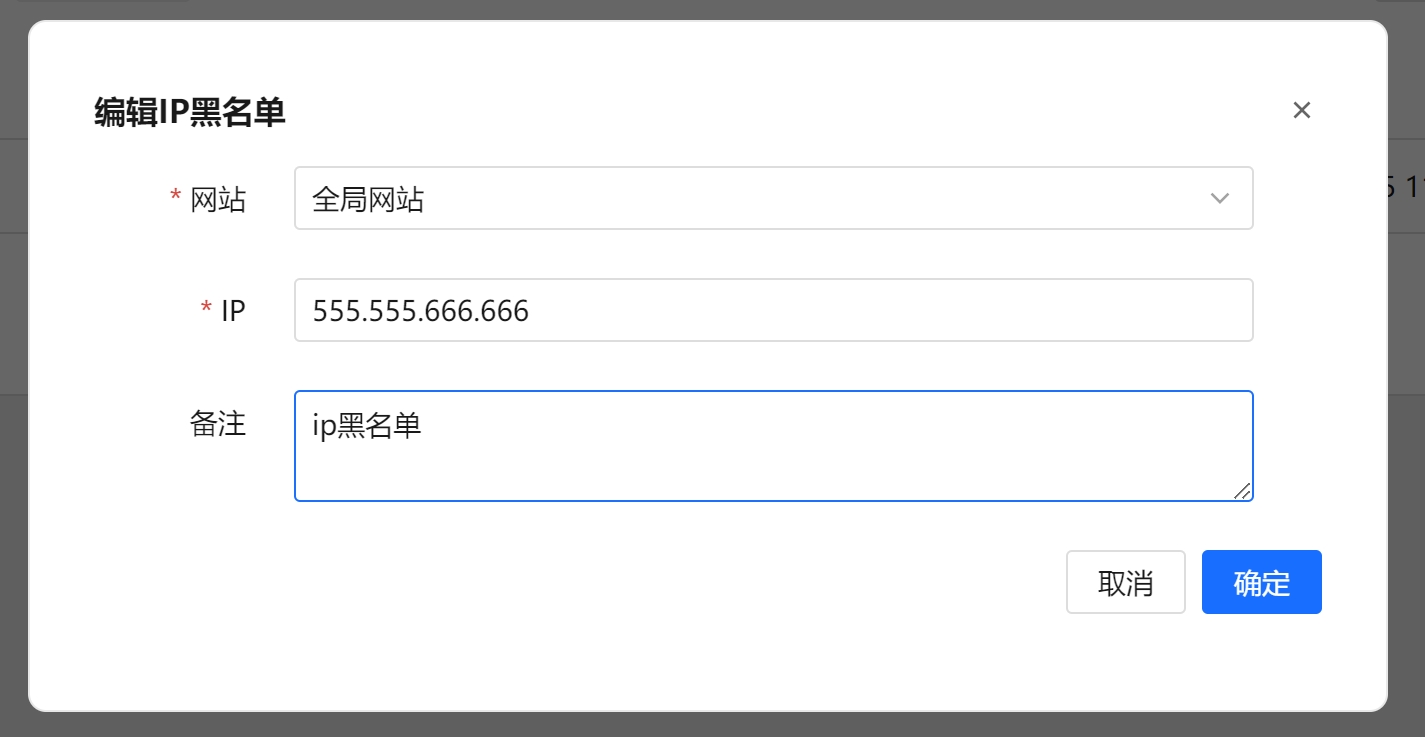
- Click the Add Blocklist IP button in the top-left corner to open the dialog.
- Select a Website (required) — the protected site this blacklist entry applies to.
- Choose the Entry Type:
- Single IP / CIDR (default): enter the IP directly — see 3.2 Supported IP syntax.
- Reference IP Group: pick an existing IP Group from the IP Group dropdown; every IP in that group applies at once. Options are shown as "Group Name (entry count)", and the Manage IP Groups link next to it jumps to the IP Group page.
- Optionally add notes in the Remarks field.
- Click Confirm to save.
The list has a new Type column that distinguishes the two kinds of entry. For a row that references a group, the IP column shows "Group Name (entry count)" rather than a concrete IP.
Tips
When the same set of IPs has to be blocked on several sites, create an IP Group first and have each site's blacklist reference it. Changing the group afterwards updates every referencing site at once — no per-site edits.
3.2 Supported IP syntax
| Syntax | Example | Notes |
|---|---|---|
| Single IP | 1.2.3.4, 2001:db8::1 | IPv4 and IPv6 both supported |
| CIDR | 10.0.0.0/8, 2001:db8::/32 | |
| IPv4 wildcard | 10.10.*.*, 10.*.1.* | Per octet; * may appear in any position |
| IPv6 wildcard | 2001:db8:*:*:*:*:*:* | Per group; all 8 groups must be spelled out and :: shorthand cannot be mixed in |
| Range | 1.2.3.4-1.2.3.99 | Inclusive on both ends; start and end must both be IPv4 or both IPv6 |
The same hint appears under the input box: Supports single IP, CIDR, wildcard (IPv4 per octet e.g. 10.10.*.*; IPv6 must spell out all 8 groups and cannot use :😃, and range (start-end).
Warning
Patterns that match every IP — such as *.*.*.* and 0.0.0.0-255.255.255.255 — are rejected on save (in a blacklist that would ban every visitor). If you really need this, write 0.0.0.0/0 explicitly.
3.3 Block layer and syntax limits
Block Layer can be WAF App Layer, System Firewall, or Both. When the entry type is Reference IP Group, or the IP uses a wildcard or range, the System Firewall and Both options are greyed out automatically — only WAF App Layer remains selectable — and the page shows:
Entries referencing an IP group or using wildcard/range syntax can only apply at the WAF layer; the system firewall does not support them
The reason is that the system firewall (iptables / netsh) only understands single IPs and CIDR ranges; it cannot express wildcards, ranges or group references.
3.4 Edit / Delete
- In the Operation column of each row, click Edit to change the website, IP, or remarks of an entry.
- Click Delete to remove a single entry (a confirmation prompt appears).
3.5 Batch Delete and Clear All
- Tick the checkboxes in front of the rows, then click Batch Delete to remove all selected entries (the button is disabled when nothing is selected).
- Click Clear All to remove all blacklist entries under the current filter (a second confirmation appears).
3.6 Export Data
Click Export Data to export the blacklist as an Excel file (ipblock.xlsx) for backup or migration.
3.7 Search
The top-right area lets you filter by Website and IP; enter values and click Search.
4 Field Reference
| Field | Description |
|---|---|
| Website | The protected site this entry applies to. Required when adding/editing. |
| Entry Type | Single IP / CIDR (default) or Reference IP Group; decides whether you fill in the IP or pick a group. |
| IP | The IP to block. Supports a single IP, CIDR, wildcard and range (see 3.2). Required when the entry type is Single IP / CIDR. |
| IP Group | The referenced IP Group. Required when the entry type is Reference IP Group; the entry follows the group content immediately whenever it changes. |
| Block Layer | WAF App Layer / System Firewall / Both. Only WAF App Layer is available for group references and for wildcard/range syntax. |
| Remarks | Optional free-text notes. |
| Create Time | The creation time of the record (shown in the list, generated automatically). |
Warning
Use broad ranges like 0.0.0.0/0 with caution to avoid blocking legitimate visitors. If an IP whitelist is also configured, the whitelist takes precedence and allows the traffic through.
5 Feed Source
Switch to the Feed Source tab at the top to view, read-only, a per-channel summary of Threat Intelligence IP Feeds landed into the WAF application layer: name, channel code, landing layer, enabled status, Landed (Active) count, last status, and last sync time.
For performance, subscribed IPs are not written row-by-row into this page's blacklist; they are summarized per channel. Click View IPs on a channel to browse its specific IPs/CIDRs read-only, with substring filtering.