
IP Whitelist
IP Whitelist
1 IP Whitelist
The protective wall will ignore IPs within the whitelist.
1.1 IP Whitelist
Support IP or CIDR
1.2 Batch Add Whitelist IP
See: Website Management -> Batch Tasks
Batch Add Whitelist IP
2 Overview
The IP whitelist is an "allow list": when an IP or CIDR range in the whitelist accesses a protected website, SamWaf skips all protection checks for it and lets the request through. It is commonly used for internal ops IPs, monitoring/health-check IPs, payment callback sources, and other traffic that should bypass inspection.
The banner at the top of the page reads: SamWaf will ignore IPs / ranges that are in the whitelist.
3 Operation Steps
3.1 Add a Whitelist IP
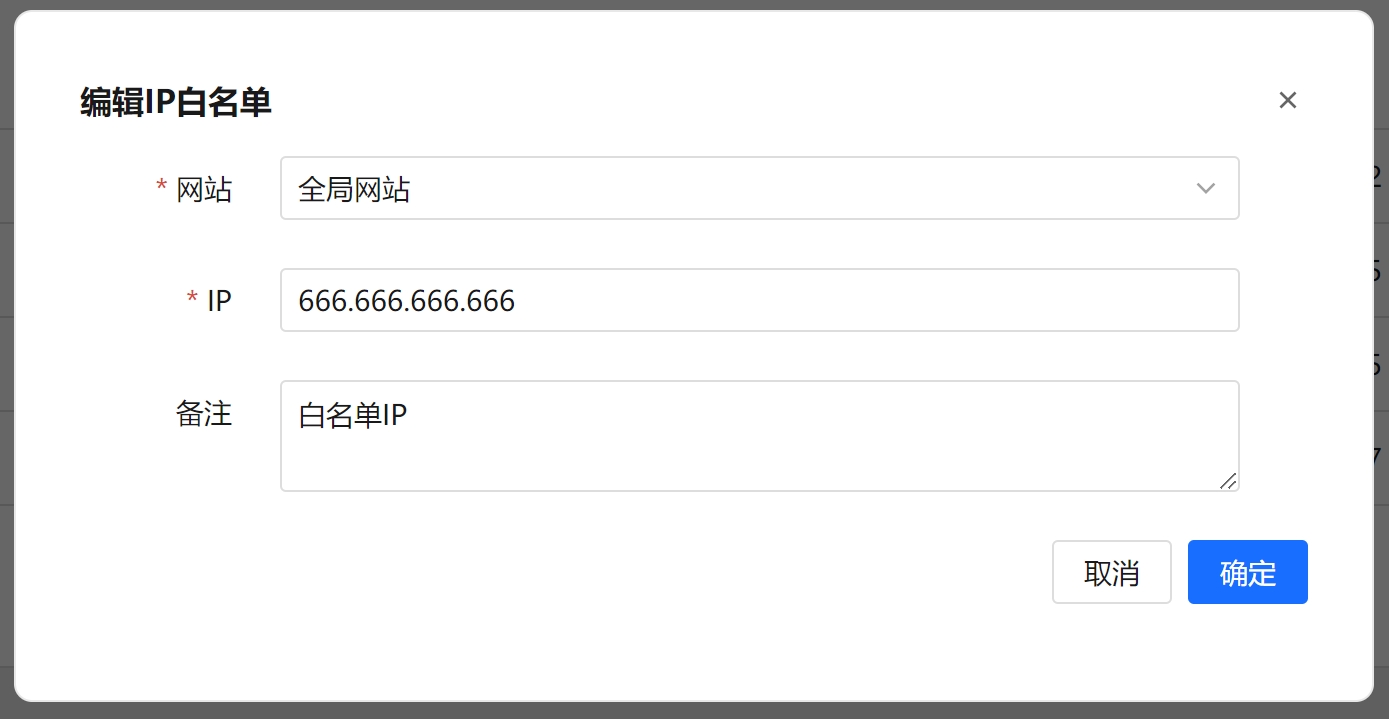
- Click the Add Allowlist IP button in the top-left corner to open the dialog.
- Select a Website (required) — the protected site this whitelist entry applies to.
- Choose the Entry Type:
- Single IP / CIDR (default): enter the IP directly — see 3.2 Supported IP syntax.
- Reference IP Group: pick an existing IP Group from the IP Group dropdown; every IP in that group is allowed at once. Options are shown as "Group Name (entry count)", and the Manage IP Groups link next to it jumps to the IP Group page.
- Optionally add notes in the Remarks field.
- Click Confirm to save.
The list has a new Type column that distinguishes the two kinds of entry. For a row that references a group, the IP column shows "Group Name (entry count)" rather than a concrete IP.
Tips
For IPs that must be allowed on several sites at once — ops egress, monitoring and health-check sources — create an IP Group first and have each site's whitelist reference it. When staff or egress IPs change later, edit the group once and every referencing site follows immediately.
3.2 Supported IP syntax
| Syntax | Example | Notes |
|---|---|---|
| Single IP | 127.0.0.1, 2001:db8::1 | IPv4 and IPv6 both supported |
| CIDR | 192.168.1.0/24, 2001:db8::/32 | |
| IPv4 wildcard | 10.10.*.*, 10.*.1.* | Per octet; * may appear in any position |
| IPv6 wildcard | 2001:db8:*:*:*:*:*:* | Per group; all 8 groups must be spelled out and :: shorthand cannot be mixed in |
| Range | 1.2.3.4-1.2.3.99 | Inclusive on both ends; start and end must both be IPv4 or both IPv6 |
The same hint appears under the input box: Supports single IP, CIDR, wildcard (IPv4 per octet e.g. 10.10.*.*; IPv6 must spell out all 8 groups and cannot use :😃, and range (start-end).
Warning
Patterns that match every IP — such as *.*.*.* and 0.0.0.0-255.255.255.255 — are rejected on save. A whitelist that matches everything leaves the site completely unprotected. If you really need this, write 0.0.0.0/0 explicitly.
3.3 Edit / Delete
- In the Operation column of each row, click Edit to change the website, IP, or remarks of an entry.
- Click Delete to remove a single entry (a confirmation prompt appears).
3.4 Batch Delete and Clear All
- Tick the checkboxes in front of the rows, then click Batch Delete to remove all selected entries (the button is disabled when nothing is selected).
- Click Clear All to remove all whitelist entries under the current filter (a second confirmation appears).
3.5 Search
The top-right area lets you filter by Website and IP; enter values and click Search.
4 Field Reference
| Field | Description |
|---|---|
| Website | The protected site this entry applies to. Required when adding/editing. |
| Entry Type | Single IP / CIDR (default) or Reference IP Group; decides whether you fill in the IP or pick a group. |
| IP | The IP to allow. Supports a single IP, CIDR, wildcard and range (see 3.2). Required when the entry type is Single IP / CIDR. |
| IP Group | The referenced IP Group. Required when the entry type is Reference IP Group; the entry follows the group content immediately whenever it changes. |
| Remarks | Optional free-text notes. |
| Create Time | The creation time of the record (shown in the list, generated automatically). |
Tips
The "Website" column in the list shows the corresponding site name. To allow an IP across all sites, select the global website when adding the entry.