
Protection Rules
Protection Rules
1 Script Editing
1.1 Quick Handling from Logs
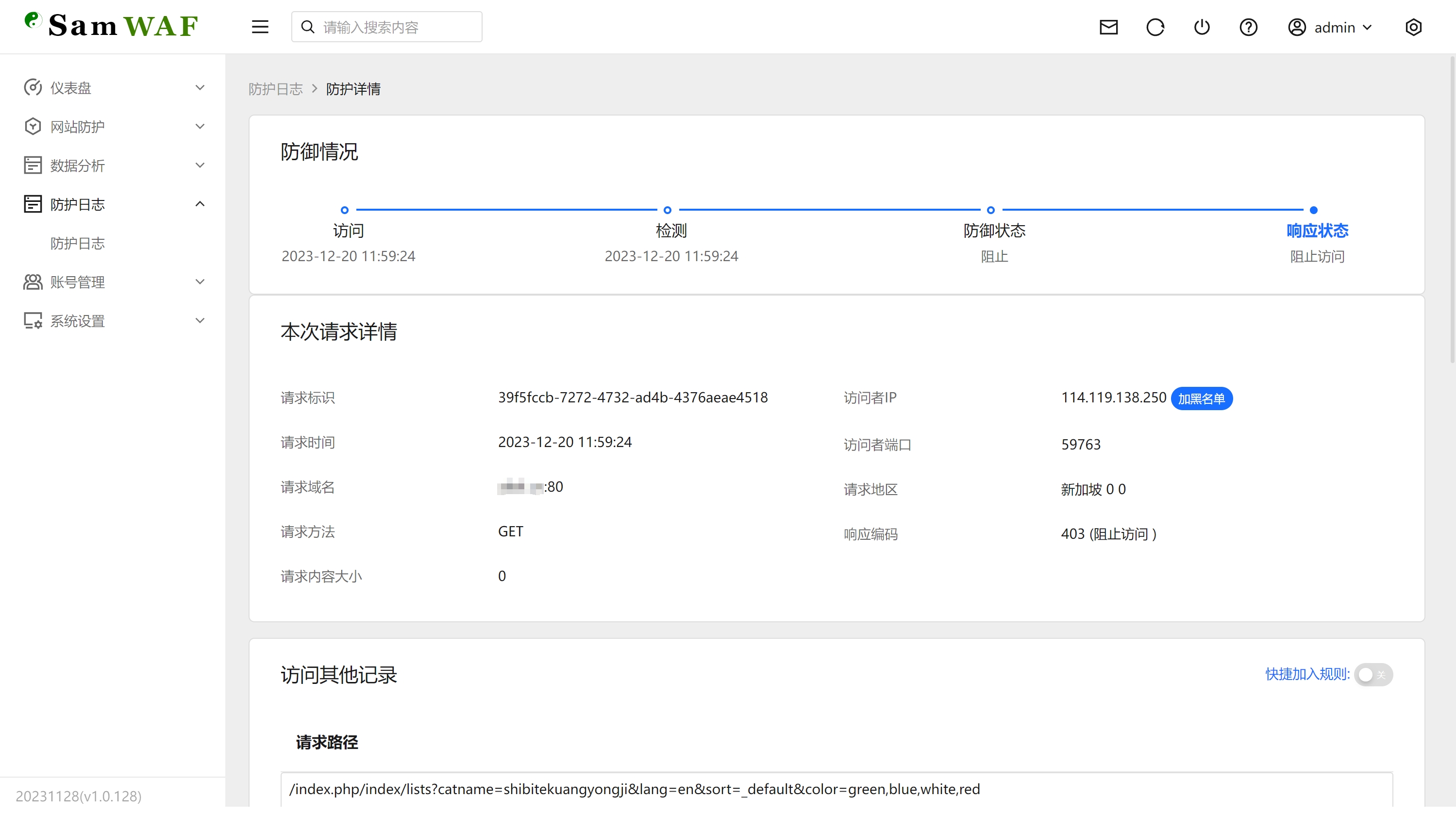 Select the desired feature value, turn on the "Quick Add Rule" switch, and click on a blank space.
1.2 Selecting Feature Values
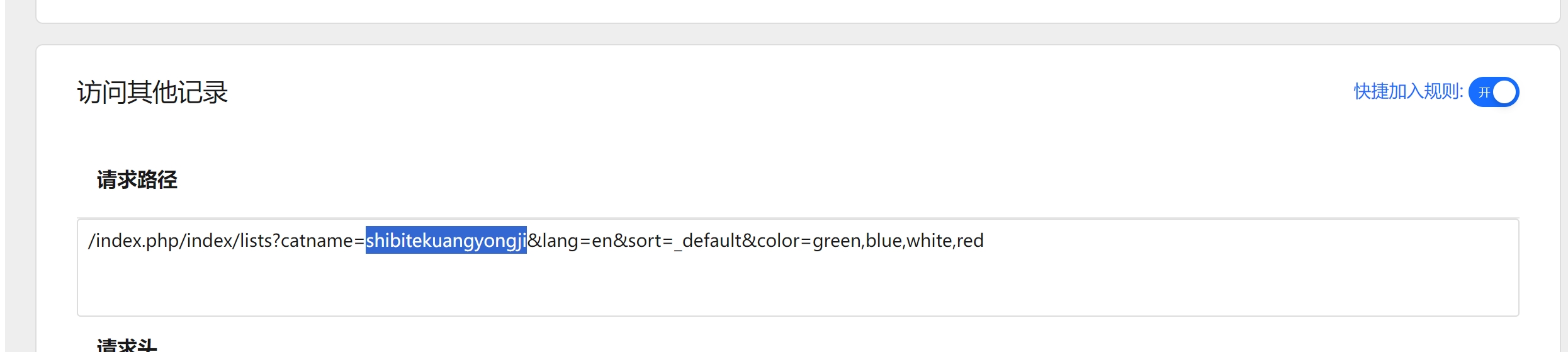
1.3 Automatically Create Rule Script
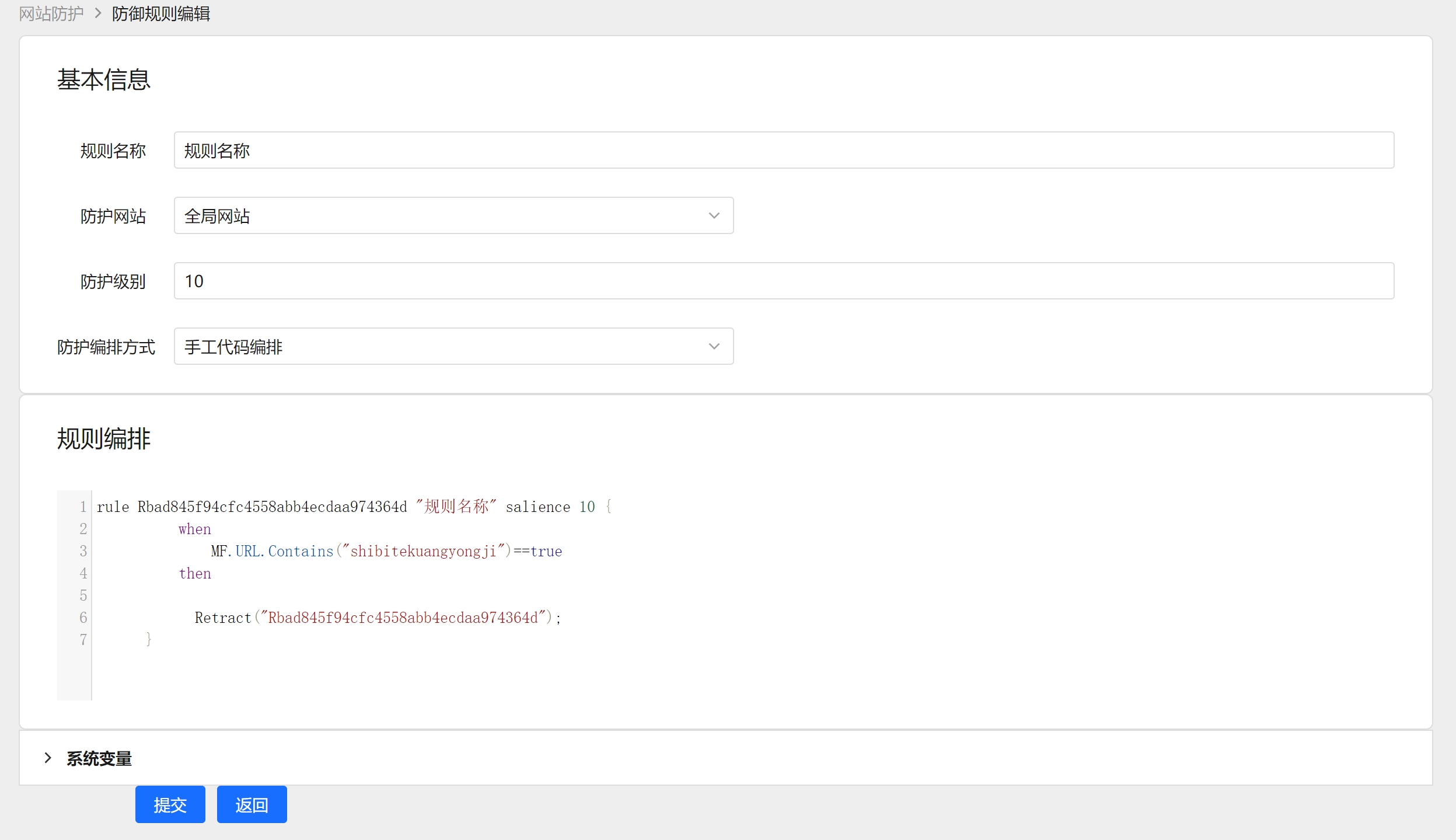
Currently, the following data can be identified:
Host
HOST

URL
URL

Referrer
REFERER

User-Agent
USER_AGENT

Request Method
METHOD

Access COOKIES
COOKIES

Access BODY
BODY

Request Port
PORT

Visitor IP
SRC_IP

Visitor Country
COUNTRY

Visitor Province
PROVINCE

Visitor City
CITY
2 Interface Editing
The current ease of use is not very convenient, it is recommended to use the script method. 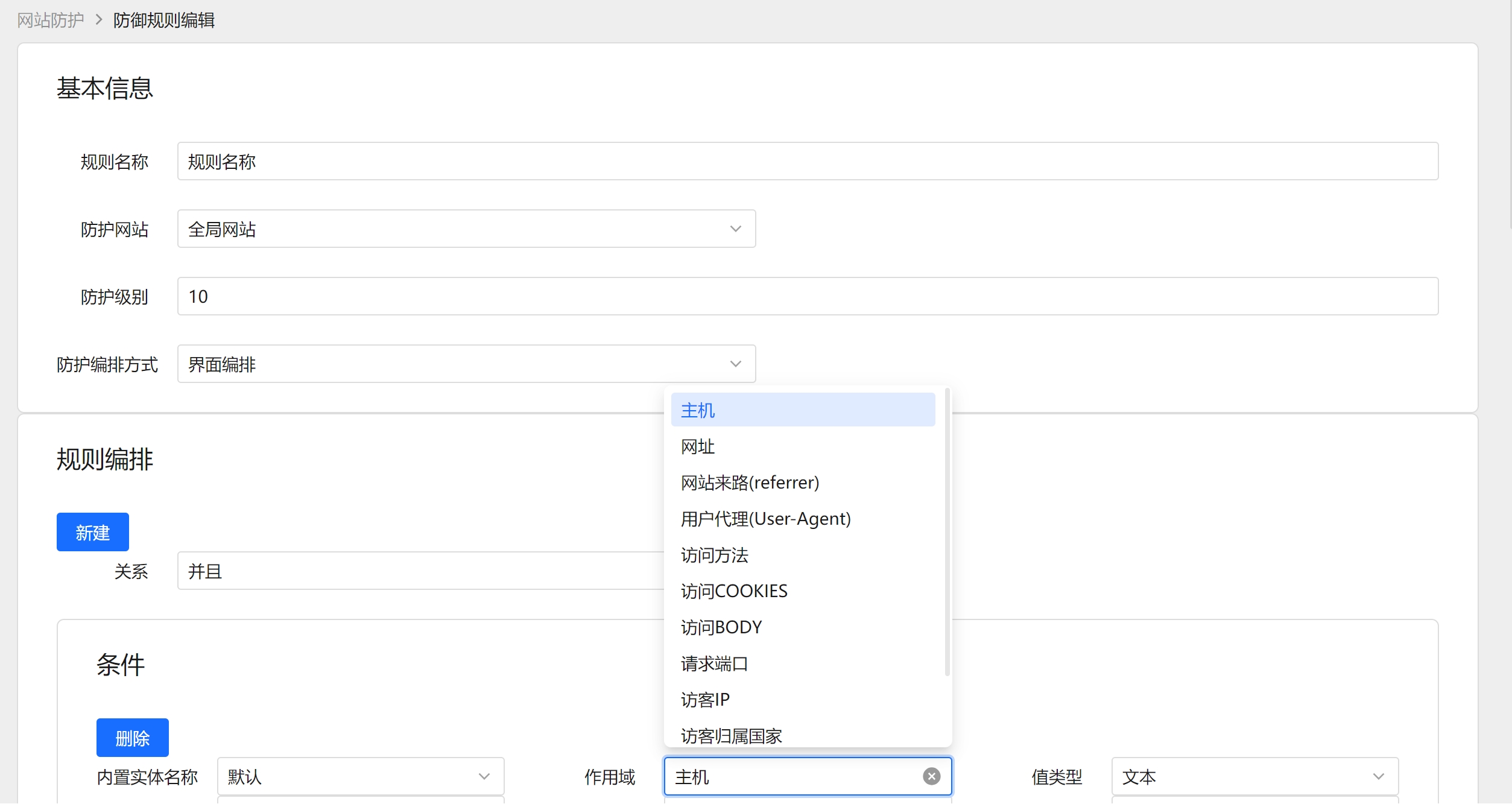
3 Deep Learning Engine
To be developed.
4 Overview
Protection Rules are SamWaf's custom defense capability, letting you write flexible blocking logic for a specific protected website. Rules support two editing modes: Manual Code (script, recommended) and Interface (visual) editing. The banner at the top of the page reads: SamWaf protection rules support script editing (preferred) and interface editing.
5 Rule List
After opening the "Protection Rules" page, you can see the list of configured rules.
5.1 Toolbar and Search
- Add Rule: opens the rule edit page to add a rule.
- Batch Delete: deletes multiple selected rules at once (disabled when nothing is selected).
- Clear All: removes all rules under the current filter (a second confirmation appears).
- Rule Chain Mode: sets where custom rules run in the detection chain (see 5.3).
- The area below supports searching by Website, Rule Name, and Rule Code; enter values and click Search.
5.2 List Columns
| Field | Description |
|---|---|
| Website | The protected site this rule applies to |
| Rule Name | The name of the rule |
| Rule Code | The unique rule code (system-generated) |
| Priority | The rule's salience value; higher wins (see 6.1 and section 7) |
| Rule Version | The rule's version number |
| Rule Status | Rule toggle, Enabled / Disabled; can be switched directly in the list |
| Update Time | Last modification time of the rule |
| Create Time | Creation time of the rule |
| Operation | Edit, Delete |
5.3 Rule Chain Mode
Click Rule Chain Mode in the toolbar to set where custom rules run in the whole detection chain, which decides which checks a rule's Allow/skip action can bypass. Changes take effect immediately, no restart needed.
| Mode | Description |
|---|---|
| Default order (legacy-compatible) | Custom rules run after CC detection. Allow actions can only skip checks placed after them (AI/Sensitive/OWASP/Anti-leech/CSRF/Upload/Captcha). Behavior stays the same for existing users. |
| Rule First (latest mode, recommended) | Custom rules run earlier — after the blocklist and before Bot/SQLI/XSS/CC. Only then can RF.Allow("CC"), RF.Allow("SQLI"), etc. actually skip these front checks, giving allow/whitelist rules more flexibility. |
6 Rule Editing
Click Add Rule or Edit on a rule to open the rule edit page.
6.1 Base Information
| Field | Description |
|---|---|
| Rule Name | A readable name for the rule |
| Protected Website | The protected site the rule applies to |
| Rule Salience | The salience (priority) value; higher wins. Range 0-10000, default 10. Site rules and global rules are arbitrated together by this value — see section 7 |
| Editing Mode | Choose Interface or Manual Code |
| Rule Status | Rule toggle, Enabled / Disabled |
Warning
In Manual Code mode, the salience written by hand in the script is overwritten by the Rule Salience field; the form value always wins. To change the priority, edit that input — changing the number in the script has no effect.
6.2 Interface Editing
Add conditions one by one through a visual UI without writing scripts — suitable for users not familiar with the script syntax.
- Click New to add a condition.
- Each condition contains: Scope, Judgment, and Value; when the judgment is a function type (Contains/HasPrefix/HasSuffix), a Function Result field (true / false) also appears.
- A Relation can be set between multiple conditions:
AND(&&) /OR(||). - A live Rule Script Content preview is shown below while editing.
Available scopes include: Host (HOST), URL, Referrer (REFERER), User-Agent (USER_AGENT), METHOD, Cookies (COOKIES), Body (BODY), Request Port (PORT), Visitor IP (SRC_IP), Visitor Country (COUNTRY), Province (PROVINCE), City (CITY); plus function types: get a request header value GetHeaderValue("HeaderKeyName"), get IP failure count GetIPFailureCount(5), and check whether it is a safe bot IsSafeBot().
Judgment symbols include: equals (==), not equals (!=), greater than (>), less than (<), greater or equal (>=), less or equal (<=); plus function types: Contains, HasPrefix, HasSuffix.
6.3 Manual Code Editing (Recommended)
Write the rule script directly for full capability. The edit page provides reference tables on the right (System Variables, System Judgment Symbols, System Relation Symbols). The code editor on the left supports auto-completion — type . or press Ctrl+Space to pop up field/function/action suggestions (with bilingual explanations) so you don't need to memorize them.
Basic script example:
rule R80798f795d7947419ba6f593708b40d9 "Block visitors outside China" salience 10 {
    when
        MF.COUNTRY != "中国"
    then
        RF.Deny();
}
Tips
The then block expresses the action on match via action functions (RF.Deny() block / RF.Allow() allow / RF.Log() log-only; see Section 7). The legacy Retract("Rxxx") syntax still works and is equivalent to block.
Common function examples (excerpted from the built-in examples):
MF.GetHeaderValue("Accept").Contains("text/plain") == true— inspect a request headerMF.GetIPFailureCount(5) > 10— more than 10 failures within 5 minutesRF.IPMatch(MF.SRC_IP, "10.10.*.*") == true— unified IP match (single IP / CIDR / wildcard / range; prefer this one)RF.IPInGroup(MF.SRC_IP, "office-egress") == true— whether the source IP is in the given IP GroupRF.IPInRange(MF.SRC_IP, "172.16.0.0", "172.20.255.254") == true— IP range checkRF.IPInRanges(MF.SRC_IP, "10.0.0.0/8", ...) == true— multiple rangesRF.IPInCIDR(MF.SRC_IP, "192.168.1.0/24") == true— CIDR checkRF.In(MF.METHOD, "GET", "POST") == true— value-in checkRF.ContainsAnyIgnoreCase(MF.USER_AGENT, "bot", "spider", "crawler") == true— string contains checkRF.EndsWithAny(MF.URL, ".php", ".asp") == true— suffix check
Built-in Example Browser
Below the editor is an example browser that organizes copy-ready / one-click-apply rule examples into four categories:
- ⚡ Actions: how to write block / allow / allow-and-skip / allow-all / log-only.
- 🎯 Scenarios: common cases such as blocking overseas access, scanner detection, login brute-force protection, WordPress admin probing.
- 🔗 Combined: multi-condition
&&/||, salience priority combinations. - 🧰 Functions: usage of each rule function (IPInRange / ContainsAny / EndsWithAny, etc.).
Each example supports three views (Card / Table / Detail). Click Copy to copy the script, or Apply to insert it into the editor (the example's rule name is auto-replaced with the current rule code).
6.4 Testing a Rule
Click Test Rule at the bottom of the edit page to simulate a request and verify whether the rule matches, without affecting production. You can fill in: simulated IP, Host, URL, Method, User-Agent, Referer, Header, Cookies, and Body. The result shows Rule Matched (will be blocked) or Rule Not Matched (will not be blocked), along with: the Effective Action (block/allow/log-only), the matched rules with their action and skipped detection modules, and the parsed location (country/province/city). Clicking Test before saving lets you confirm the rule's real effective action.
Tips
It is recommended to auto-generate a defense script by selecting feature values from Log Details with one click (see Section 1 of this page) — faster and more accurate than writing by hand.
7 Hit Action (Block / Allow / Log Only / Ban)
The action taken when a rule matches is expressed via an action function in the then block (Manual Code editing), or chosen from the Hit Action dropdown (Interface editing):
| Action | Script | Description |
|---|---|---|
| Block | RF.Deny(); | Block the request and return the block page (default; omitting the action equals block) |
| Allow | RF.Allow(); | Not blocked by custom rules on match, but later checks (SQLI/XSS/CC, etc.) still run |
| Allow and skip given checks | RF.Allow("CC","AI"); | Allow and skip the detection modules listed in the parentheses |
| Allow all | RF.AllowAll(); | Allow and skip all subsequent checks, straight to the backend |
| Log only | RF.Log(); | Only log on match, do not block; used for canary observation of new rules |
| Ban | RF.Ban(10); | Block the current request and temporarily ban the client IP on the current host for the given minutes (a positive integer). Bans are managed under "Website Protection → IP Ban"; an existing ban is not extended |
In Interface editing, when the action is Allow, a Skip Detections multi-select appears with: All, Bot Detection, SQL Injection, XSS, Scanner, RCE, Directory Traversal, CC Protection, AI Detection, Sensitive Words, OWASP, Anti-Leech, CSRF, Upload Check, Captcha. Choosing "All" equals Allow all.
7.1 Rule Skip (modules skippable via RF.Allow)
When you want to skip a specific built-in detection, use the latest RF.Allow:
RF.Allow([module...])| Module | Description |
|---|---|
| BOT | Crawler / bot detection — identifies automated UAs and crawler fingerprints |
| SQLI | SQL injection detection (libinjection + rules) |
| XSS | Cross-site scripting (XSS) detection |
| SCAN | Scanner / vulnerability-tool fingerprinting (sqlmap, nmap, awvs, etc.) |
| RCE | Remote command / code execution detection |
| DIR | Directory traversal / path traversal (../ escape) detection |
| CC | CC attack protection (rate limiting / high-frequency access blocking) |
| AI | AI-based anomalous request detection (catches abnormal traffic rules miss) |
| SENSITIVE | Sensitive word / sensitive information detection |
| OWASP | OWASP CRS rule set (Coraza) detection |
| ANTILEECH | Anti-leech (Referer check, prevents resources being hotlinked by other sites) |
| CSRF | Cross-site request forgery (CSRF) protection |
| UPLOAD | File upload content check (extension / webshell / type / size of multipart uploads) |
| CAPTCHA | Human verification (captcha) check |
| ALL | Skip all of the above — equivalent to RF.AllowAll() |
Usage notes:
- Module names are case-insensitive:
RF.Allow("cc")is the same asRF.Allow("CC"). - Multiple modules can be skipped at once, separated by commas:
RF.Allow("SQLI","XSS","CC"); RF.Allow()without arguments only means "not blocked by custom rules"; it does not skip any built-in detection.- Using a module name outside this whitelist raises an error when the rule is saved/validated.
Example — skip CC and AI detection for intranet IPs:
rule Rdemo_skip_cc_ai "Intranet IPs skip CC and AI detection" salience 100 {
    when
        RF.IPInCIDR(MF.SRC_IP, "192.168.1.0/24") == true
    then
        RF.Allow("CC","AI");
}
Warning
Skipping only applies to checks placed after custom rules. Under the default order, rules run after CC and can only skip AI/Sensitive/OWASP/Anti-leech/CSRF/Upload/Captcha; to skip front checks like Bot/SQLI/XSS/CC, set Rule Chain Mode to "Rule First" (see 5.3).
When multiple rules match with conflicting actions, the higher salience wins; with equal salience the effective action is chosen by Block > Allow > Log Only.
7.2 Priority Between Site Rules and Global Rules
A rule can be attached to one specific site, or to the Global Site (applies to every site). When a request matches both a site rule and a global rule, the two are arbitrated together by salience:
| Case | Effective result |
|---|---|
| Only one side matches | That side is used |
| Both match, different salience | The higher value wins (regardless of site or global) |
| Both match, equal salience | Chosen by Block > Allow > Log Only. So on a tie, a global block overrides a site allow |
Therefore, to make a site whitelist override a global blocking rule, the site rule's salience must be higher than the global rule's.
Example: a global rule blocks all overseas IPs (salience 10), but a file-sharing site must stay reachable for a set of trusted IPs — the site's allow rule needs a salience greater than 10 (for example 100):
// Rule under the Global Site: block overseas access, salience 10
rule Rglobal_block_oversea "Block overseas access" salience 10 {
    when
        MF.COUNTRY != "中国"
    then
        RF.Deny();
}
// Rule under the file-sharing site: allow trusted IPs, salience 100 (higher than 10, so it beats the global block)
rule Rsite_allow_partner "Allow partner IPs" salience 100 {
when
RF.IPInRanges(MF.SRC_IP, "203.0.113.10-203.0.113.20") == true
then
RF.Allow();
}Warning
If the site rule above also used salience 10, it would tie with the global rule and "Block > Allow" applies, so the request would still be blocked by the global rule. This is also the fixed behavior of older versions — existing configurations usually leave both at the default 10, so upgrading does not change their behavior.
Tips
RF.Allow() and RF.AllowAll() behave identically for priority arbitration; they differ only in how many subsequent checks are skipped after allowing (see 7.1). Do not use RF.AllowAll() as a way to "raise the priority" — raise the salience value instead.
8 AI Rule Generation and AI Settings
The top of the Manual Code editing page provides an AI Generate Rule panel: describe the protection you want in one sentence (e.g. "block non-China IPs accessing /admin"), click Generate, and SamWaf calls your configured AI to produce the rule script. The server automatically validates the rule (invalid output is auto-repaired and retried); once validated you can Apply it to the editor in one click.
- AI Settings (gear icon at the top-right of the panel): configure the AI API with API URL, Model, and API Key (Token). For security the key is never echoed back; leave it blank to keep the existing key. The dialog ships presets for common providers (DeepSeek, OpenAI, Kimi, Zhipu, Qwen, SiliconFlow, OpenRouter, Groq, Ollama, etc.) with their API URLs and representative models — click to fill in; get the key from the provider's console.
- Copy AI Prompt: if you prefer not to configure AI locally, copy a prompt and paste it into any external AI (ChatGPT / Claude / DeepSeek, etc.), fill in your site info and protection goal at the end, and paste the generated rule text back here.
Tips
The AI parameters (API URL / Model / Key) can also be configured on the System Config page as gpt_url / gpt_model / gpt_token, or from AI Settings in the AI Assistant at the bottom-right. All three are equivalent and stay in sync. If no key is configured, clicking Generate opens the settings dialog directly.
Tips
The browser request timeout can be adjusted under Settings → General at the top-right (applies to the current browser only). Long-running requests like AI generation use a longer timeout automatically and are not limited by this value.
:::